
A practical screenshot workflow
How to organize iPhone screenshots without filing every image.
Start with automatic grouping, review what is uncertain, and keep the original in Apple Photos until you choose otherwise.
Step one
Give access deliberately
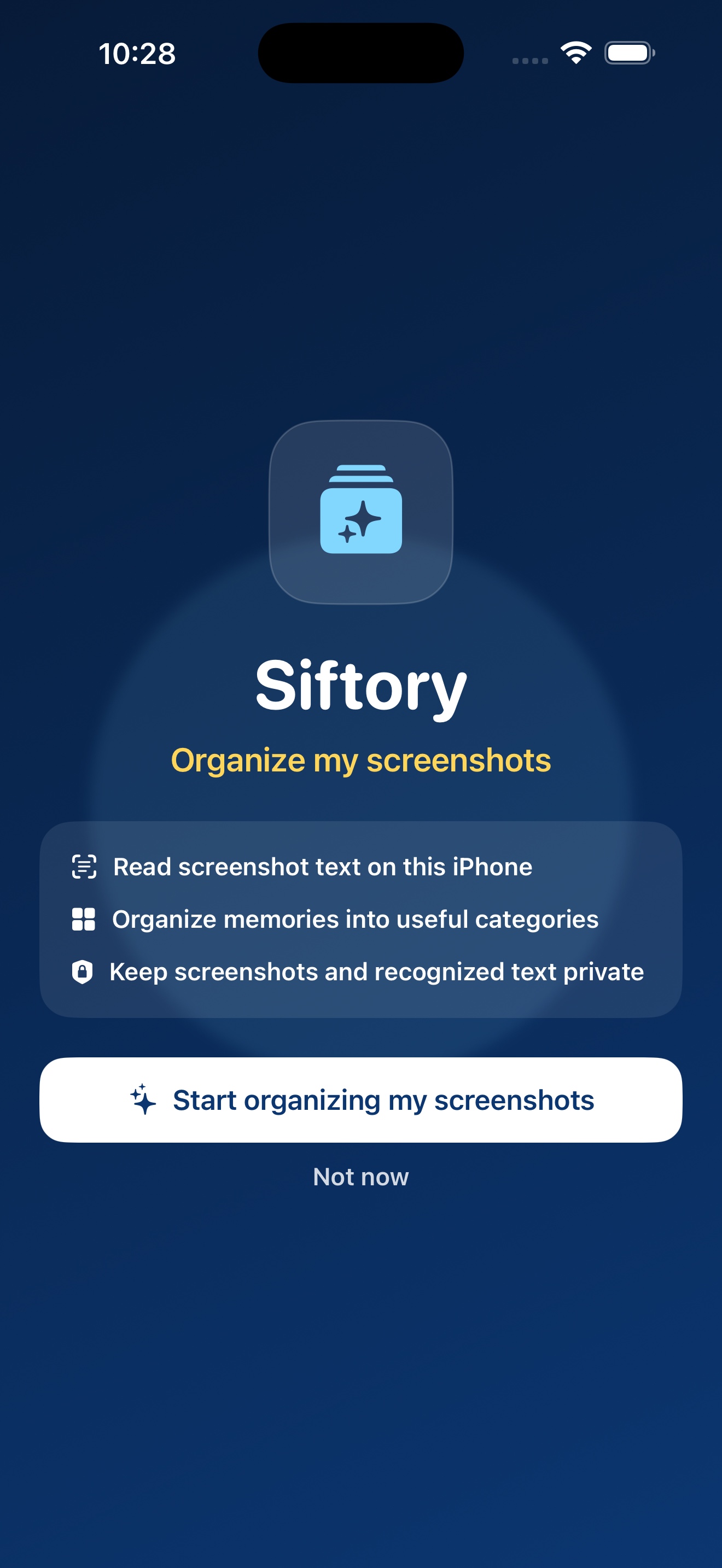
Choose Full or Limited Photos access based on your comfort. With Limited access, select the screenshots you want Siftory to organize. Ordinary camera photos are not part of the intended index.
Step two
Let categories do the first pass
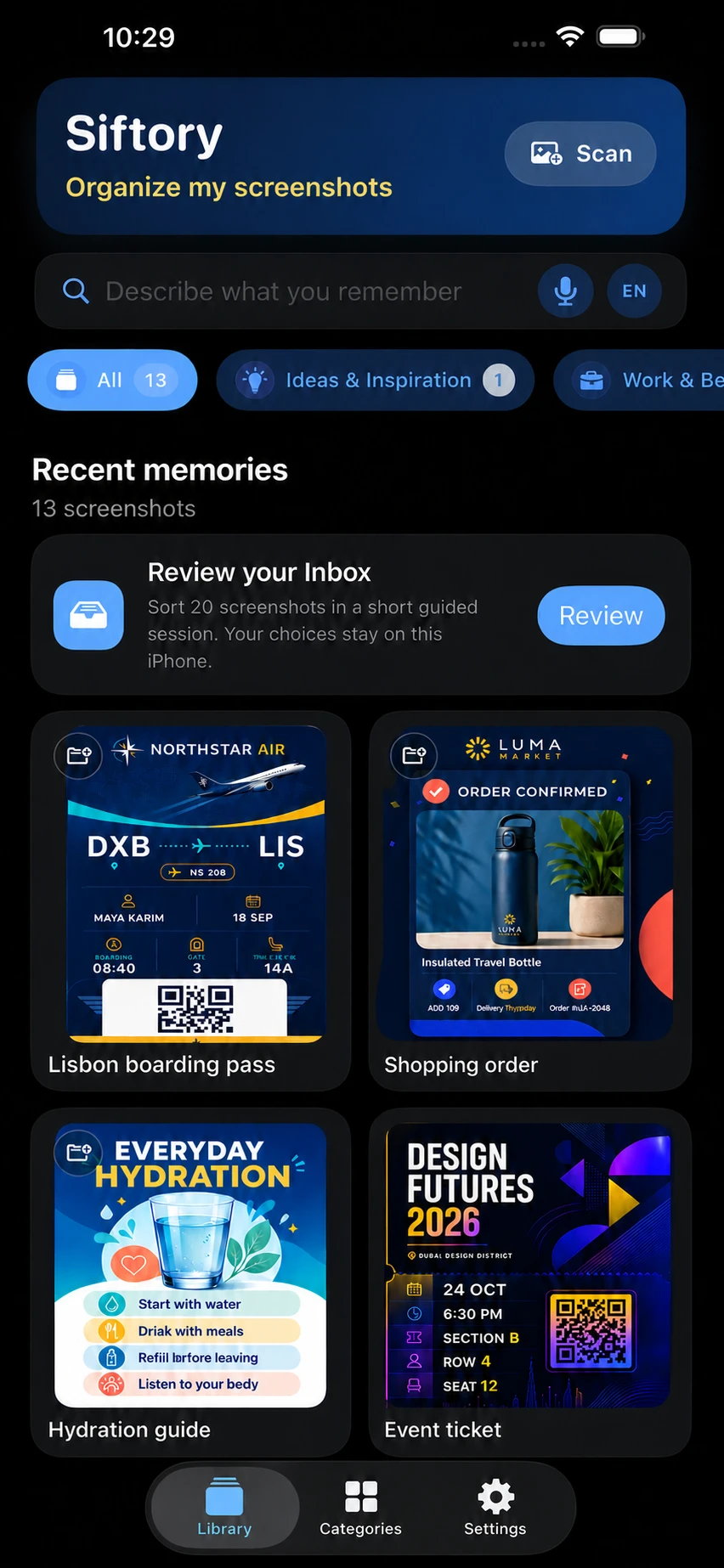
Siftory uses recognized text, multiple clues, and learned corrections to propose categories. The goal is to reduce manual filing—not pretend every automatic decision is certain.

Step three
Review the Inbox in small sessions
Some screenshots are genuinely ambiguous. A short guided review is more honest and useful than forcing them into a weak category. Each correction can improve future suggestions on that device.
Step four
Recall what you saved
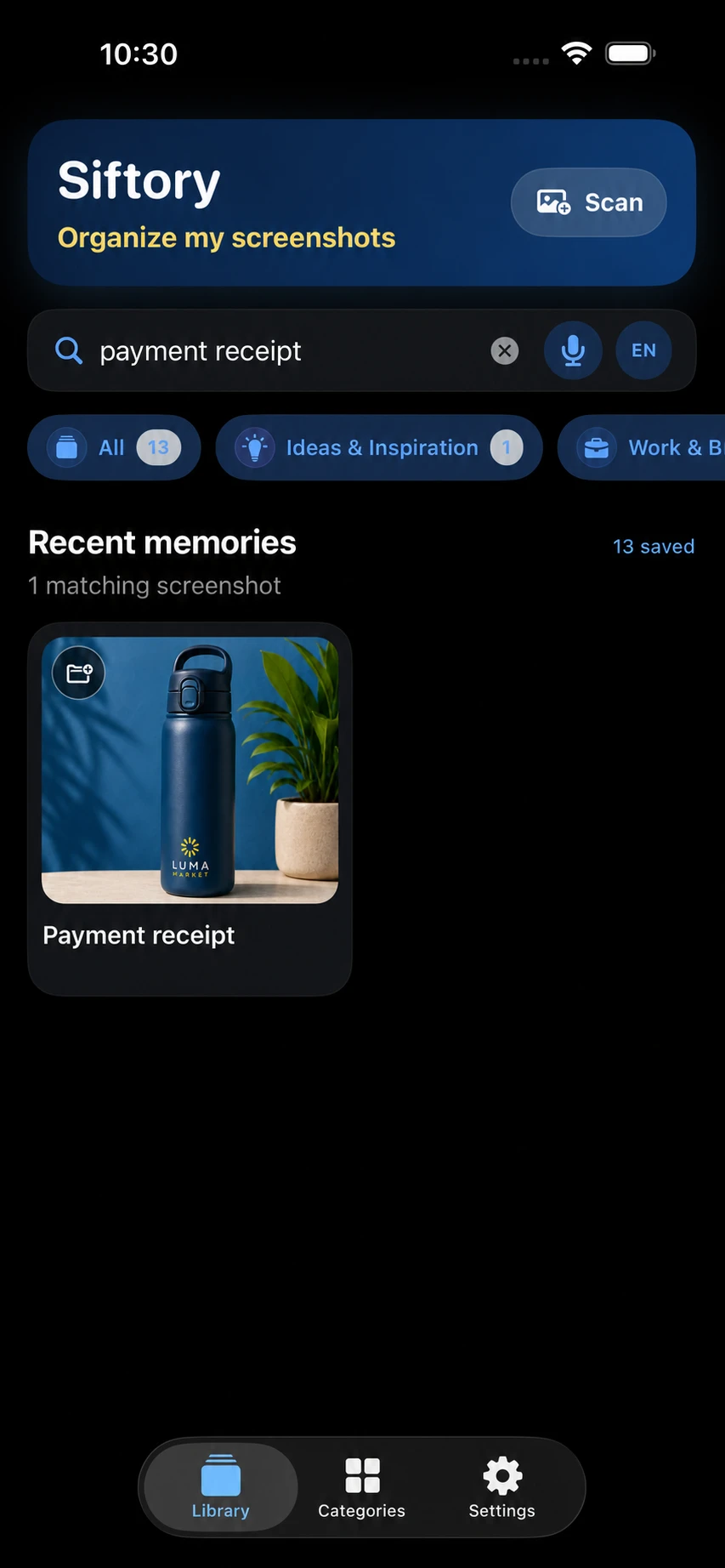
Search the words or idea you remember instead of a filename. Siftory returns matching screenshots so useful information does not stay buried in the camera roll.
Step five
Share the useful memory
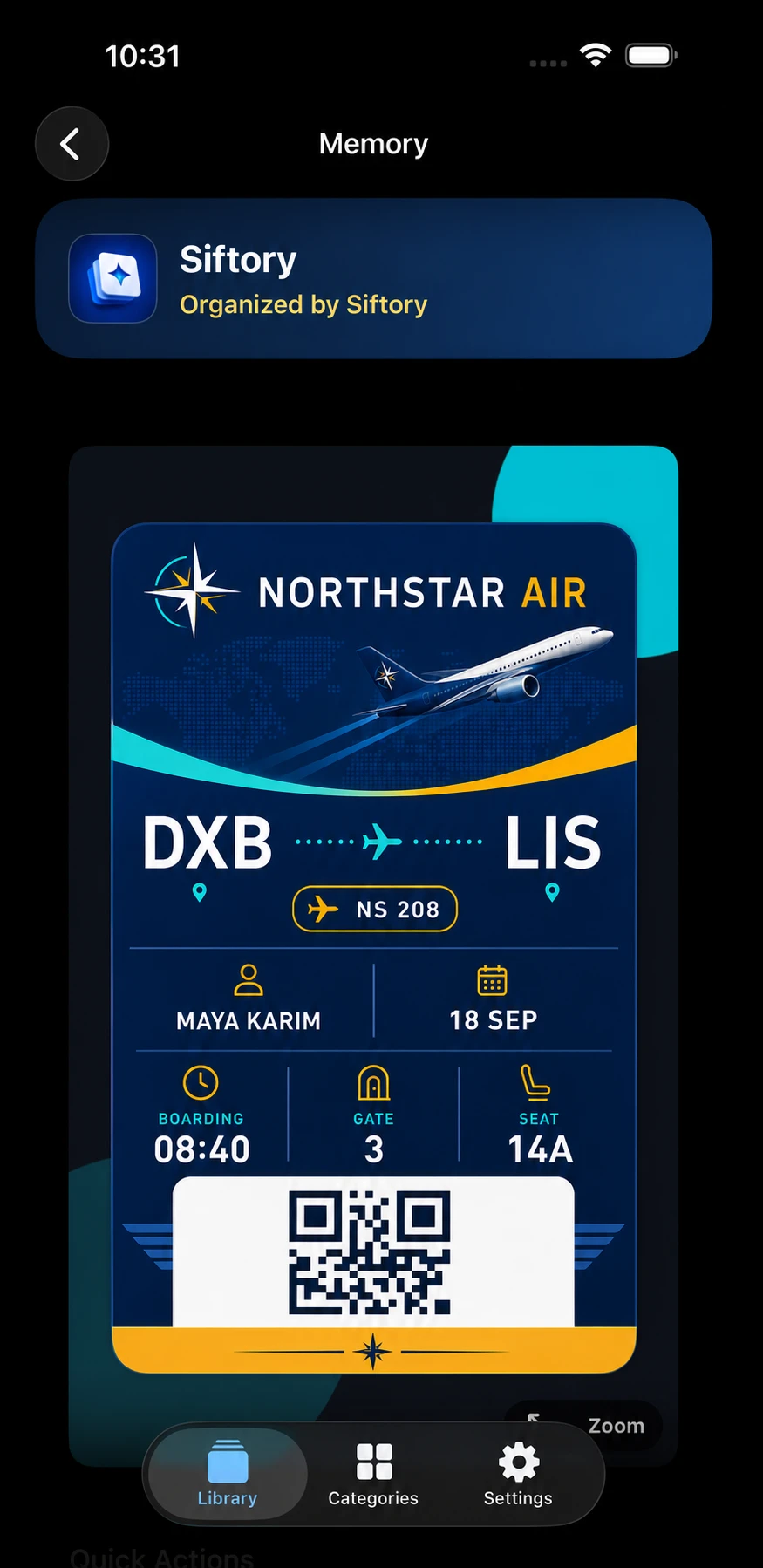
Open the screenshot detail when someone needs it. You can view the original, share it, add context, or set a reminder without changing the original in Apple Photos.

Step six
Act when you are ready
Inspect details with zoom and rotation, move an item to a better category, follow a useful link, or delete the original through Apple Photos only when you decide it is no longer useful.
Available on the App Store